
How to install an app with a custom install script
A custom install script tells HexOS exactly how to set an app up: where its files go, which port it uses and how much of your server it may use. It takes about two minutes.
-
1
Turn on expert mode and experimental features
In HexOS, open Settings, go to Preferences, then open Advanced Settings.
Turn on both the Expert mode and Experimental features switches. Together they unlock the Custom Install button on app pages.
Tip: You only need to do this once.
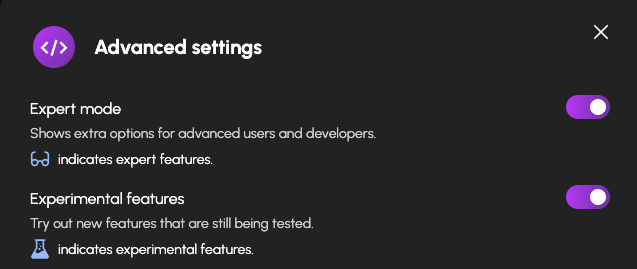
HexOS Settings › Preferences › Advanced Settings with the Expert mode and Experimental features switches turned on -
2
Find your app and copy its script
Search for the app in the Hexy Templates library and open its page.
Press Copy script. The whole script is now on your clipboard.
Read the boxes on the right if you want to know what will happen — especially any yellow boxes, which mark questions you'll be asked.
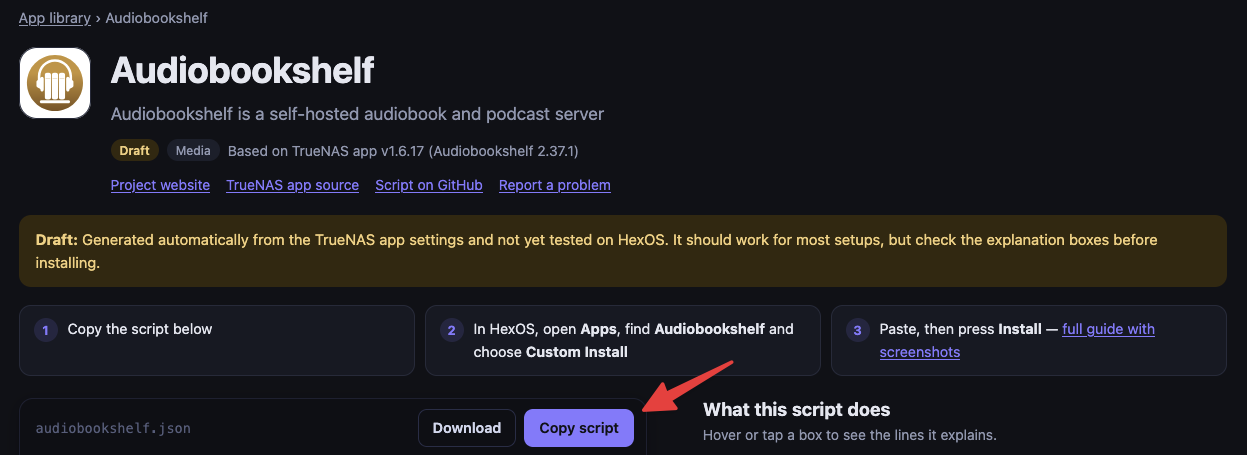
An app page on Hexy Templates with the Copy script button highlighted -
3
Open the app in HexOS
In HexOS, go to Apps and search for the same app.
Open it and choose Custom Install — the button with the glasses icon, which only appears in expert mode.
Don't press the plain Install button. For apps HexOS doesn't curate yet, that takes you to the TrueNAS setup screen instead of using the script.
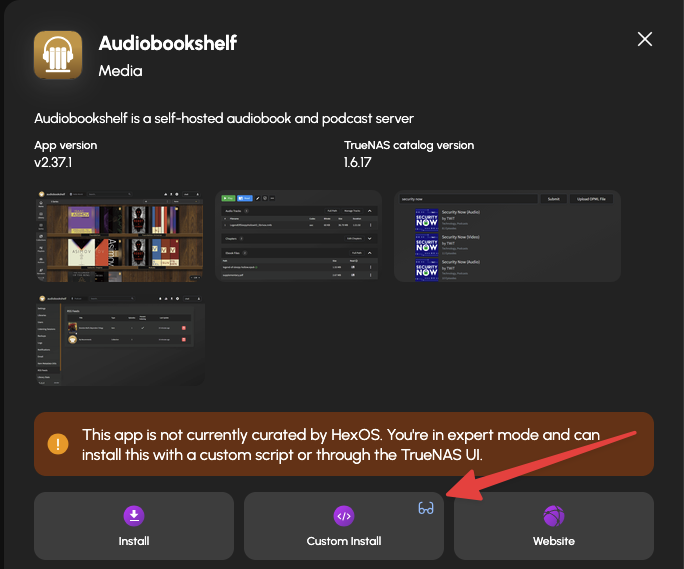
The Audiobookshelf app in HexOS with the Custom Install button highlighted -
4
Paste the script
A window titled “Install … with custom script” opens with a script editor. It may already contain a starter script, the app's default script, or the last script you used.
Click inside the editor, select everything (Ctrl+A, or Cmd+A on a Mac) and delete it.
Paste the script you copied (Ctrl+V, or Cmd+V on a Mac).
Important: Empty the editor completely before pasting — including any leftover { } brackets. If anything is left behind, the pasted script won't be valid and the install will fail.
Tip: If the editor shows a red error, the paste was probably cut short — copy the script again.
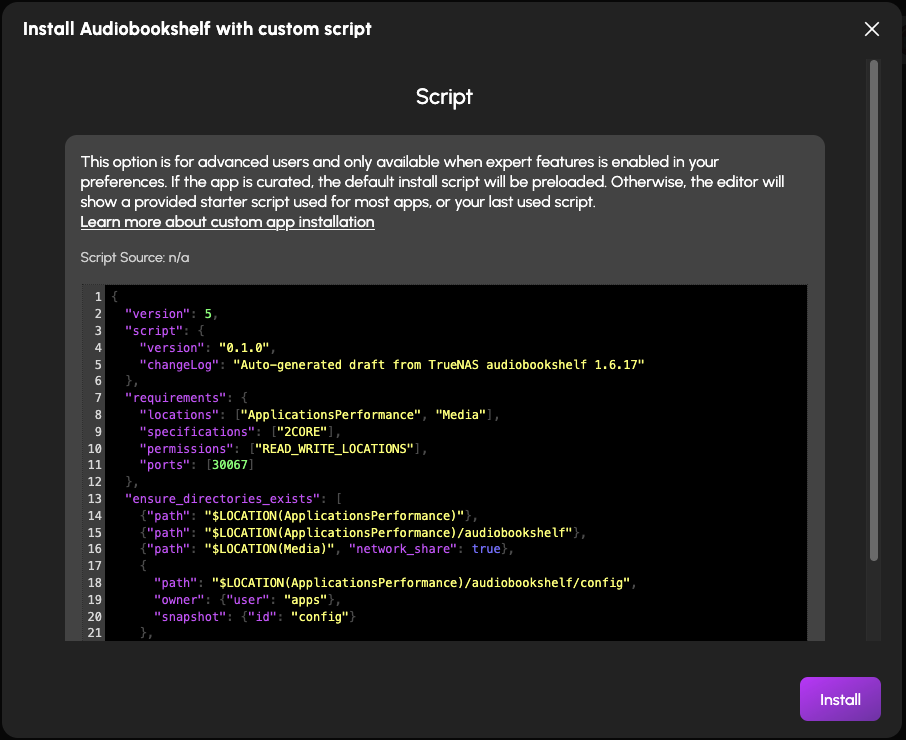
The “Install Audiobookshelf with custom script” window with the script pasted into the editor -
5
Answer any questions, then install
Press Install below the script editor.
If the app needs details from you, a Configuration page appears — for example, Directus asks for an admin email and password. Fill in every field marked with a red star, then press Install again. Passwords for the app's internal database are created for you.
If the app needs a storage location you haven't set up yet, HexOS asks you to pick one.
Wait for the app to show as running. The first start can take a few minutes while HexOS downloads it.
Good to know: Most apps don't ask any questions — only about 1 in 4 scripts do. If no Configuration page appears, that's normal: there's nothing to fill in.
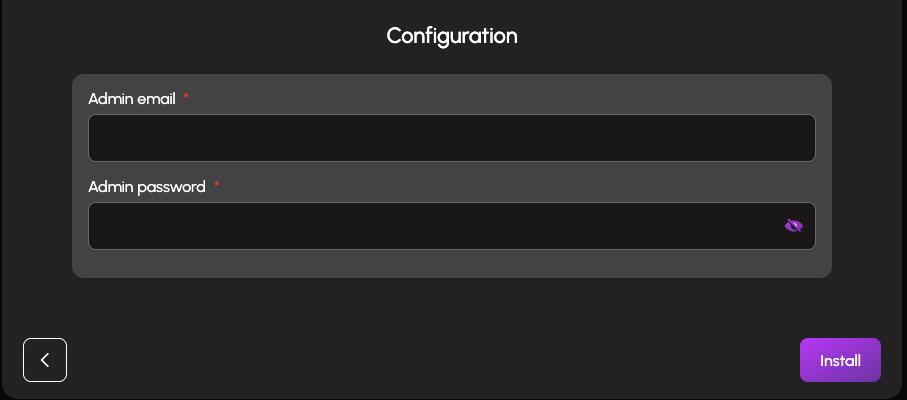
The Configuration page for Directus, asking for an admin email and password -
6
Open your new app
In HexOS, go to Apps › Installed Apps and click your new app's card.
Once it shows as Running, press Launch. The app opens in a new browser tab.
Some apps ask you to create an account or finish a short setup the first time you open them.
Good to know: You may see “This app is experimental and may not behave correctly.” That's HexOS's standard notice for apps installed with a custom script — it doesn't mean anything went wrong.
Tip: Turn on “Show on dashboard” to get a shortcut to the app on your HexOS home screen.
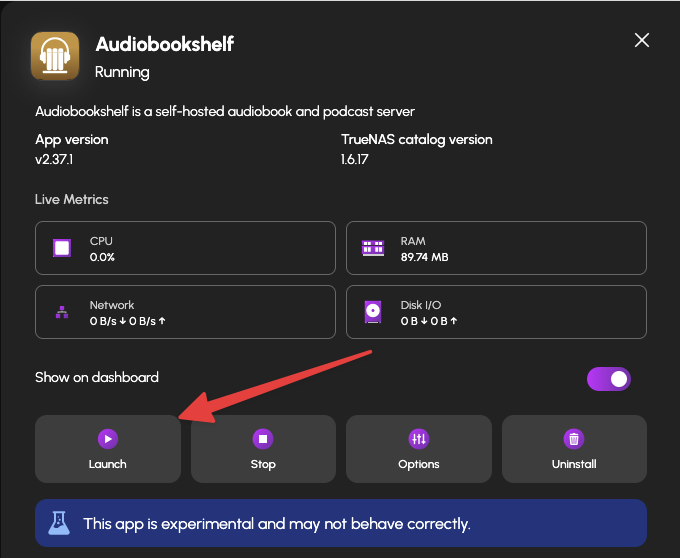
The Audiobookshelf details panel in HexOS showing Running, with the Launch button highlighted
Common questions
What does “Not yet tested” mean?
These scripts are generated automatically from the app's TrueNAS settings. They follow the same pattern as HexOS's own scripts and pass the same checks, but nobody has installed that app on a real HexOS server with it yet. “Tested” scripts have been.
Where are my app's files stored?
In the storage locations you chose when setting up HexOS — usually your fast drive for app data and your big drives for media. Each app page has a box that shows the exact folders.
The install failed. What now?
Open the app's page here and press “Report a problem” with the error HexOS showed. You can also edit the script in the HexOS editor before installing — for example to change a port that's already taken.
Is this an official HexOS site?
No. It's a community collection. HexOS's own curated scripts live at github.com/eshtek/hexos-app-catalog.